
Fix Phone Audio Issues on Your Phone in Minutes
It can be frustrating when your phone’s audio suddenly stops working. Whether you cannot hear music, videos, or calls, you need reliable solutions to fix phone audio issues quickly. The good news is that most audio problems are caused by simple issues that can be resolved at home in just a few minutes.
In this guide, we’ll walk you through step-by-step solutions to fix phone audio issues on both Android and iPhone devices, helping you restore sound before visiting a repair center.
Common Causes and How to Fix Phone Audio Issues
Understanding what might be causing your phone audio problems is the first step to fixing them. Many issues are software-related, while others involve hardware like speakers or headphone jacks.
1. Check the Volume and Sound Settings
Sometimes, the problem is as simple as muted volume or enabled Silent Mode. To fix phone audio issues:
• Press the volume up button to ensure your phone is not muted.
• Disable Silent Mode or Do Not Disturb if active.
• On Android: Settings → Sound & Vibration → adjust sliders for media, ringtone, and notifications.
• On iPhone: Settings → Sounds & Haptics → check volume sliders.
Some apps have separate volume controls, so make sure the app you’re using isn’t muted.
2. Restart Your Phone
Restarting can fix minor glitches. To do this:
• Hold the power button → select Restart. If unavailable, power off, wait a few seconds, and turn back on.
• Test audio by playing a song or video.
A simple restart often resolves software conflicts and helps fix phone audio issues.
3. Disconnect Bluetooth Devices
Your phone might be connected to Bluetooth devices, sending audio elsewhere.
• Turn off Bluetooth from Quick Settings or Settings → Bluetooth.
• Disconnect wireless earphones and check the built-in speakers.
4. Clean the Speaker and Headphone Jack
Dust and debris can block sound. To prevent this:
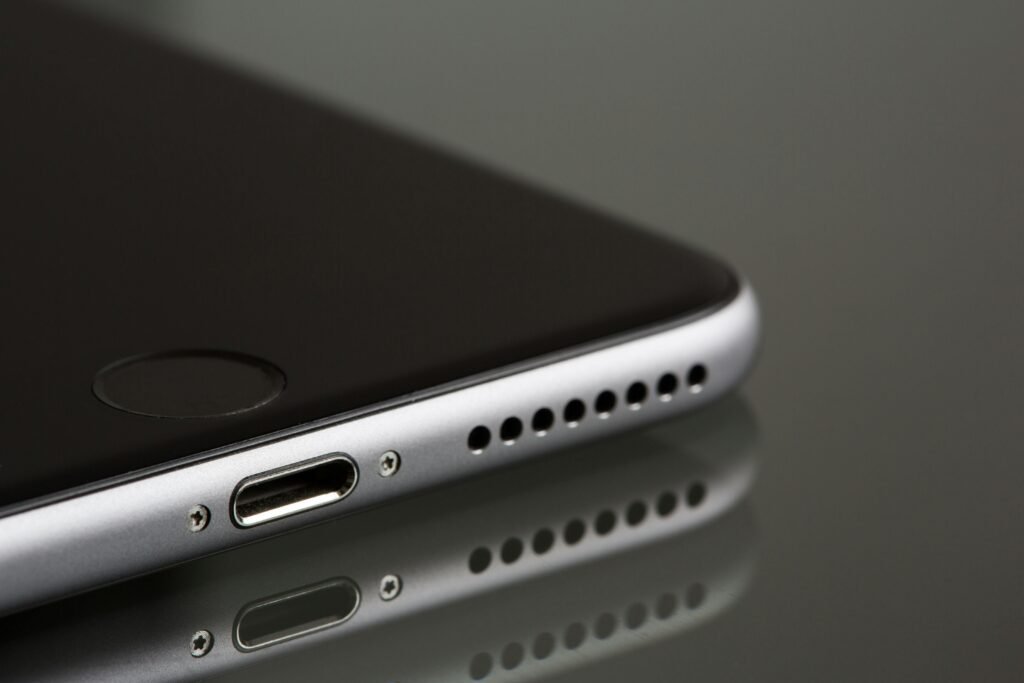
• Use a soft brush or compressed air to clean speaker grills.
• Check headphone ports for lint or dirt and clean gently.
A clean speaker often solves audio problems instantly.
5. Check the App’s Audio Settings
If the issue occurs in one app:
• Ensure the app’s volume is enabled.
• Update to the latest version.
• Reinstall if necessary.
This ensures the problem isn’t app-specific.
6. Test with Headphones or Earphones
Testing audio with headphones helps identify the source of the issue:
• If headphones work but speakers don’t, the speaker hardware may be faulty.
• If neither works, the problem is likely software-related.
7. Update Your Phone’s Software
Outdated software can cause bugs affecting audio.
• Android: Settings → Software Update.
• iPhone: Settings → General → Software Update.
Updating can fix bugs and improve system stability.
8. Reset Sound Settings to Fix Phone Audio Issues
If recent changes caused issues, reset sound settings:
• Android: Settings → System → Reset Options → Reset Sound Settings or similar.
• iPhone: Settings → General → Transfer or Reset iPhone → Reset → Reset All Settings.
This won’t delete data but restores default audio settings.
9. Use Safe Mode (Android Only)
Safe Mode lets you identify third-party apps causing issues:
• Hold power → press and hold Power Off → Reboot to Safe Mode.
• Test audio. If it works, uninstall recent apps one by one.
Safe Mode is a key tool to fix phone audio issues caused by apps.
10. Seek Professional Help
If none of the above works, hardware issues may be the cause.
• Visit an authorized service center for your phone brand. For example, Apple Support or Samsung Support.
• Check warranty coverage to avoid unnecessary costs.
Extra Tips to Prevent Audio Problems
• Keep your phone away from water or excessive moisture.
• Use a case that doesn’t block speakers.
• Clean speaker grills and ports regularly.
• Use quality earphones and unplug carefully.
Keeping your phone updated and clean can prevent many issues, from audio problems to connectivity glitches. If you ever face Wi-Fi problems, read our step-by-step guide on fix Wi-Fi not working on your phone.
Final Thoughts
Phone audio issues can be annoying, but most are easy to fix at home. By checking volume settings, cleaning speakers, updating software, or using Safe Mode, you can often restore sound without visiting a repair shop.
For persistent issues, professional repair is the safest option. Acting quickly can prevent further damage and save money. Using this guide, you now have all the tools to fix phone audio issues efficiently and keep your devices sounding great.